
1 Month IPTV Subscription — IBOMAX PRO
$9.99
Subscribe17,000+ live channels & 40,000+ movies in up to 4K on every device — delivered to your inbox in 60 seconds.

Simple one-time payments. No contract, no auto-renewal. Instant delivery.
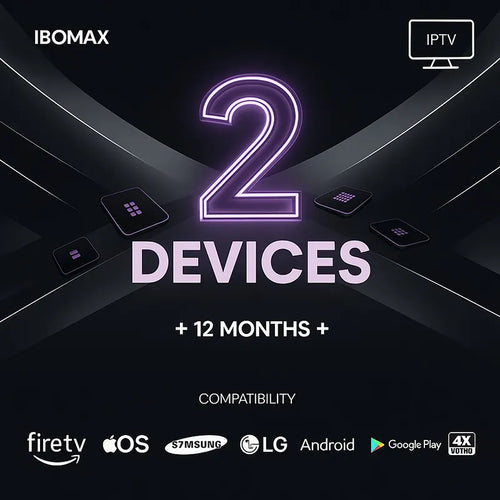
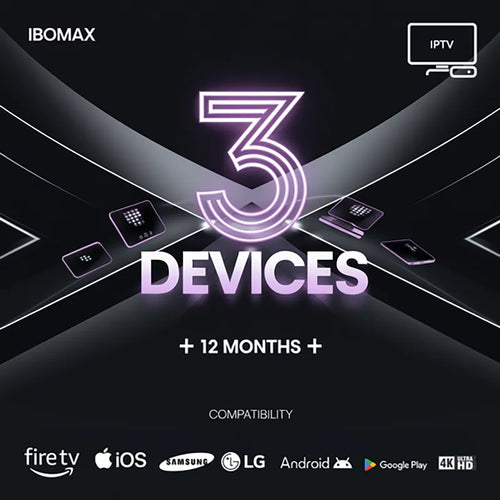
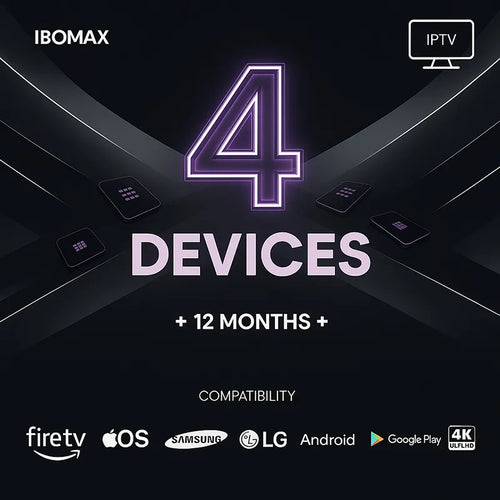
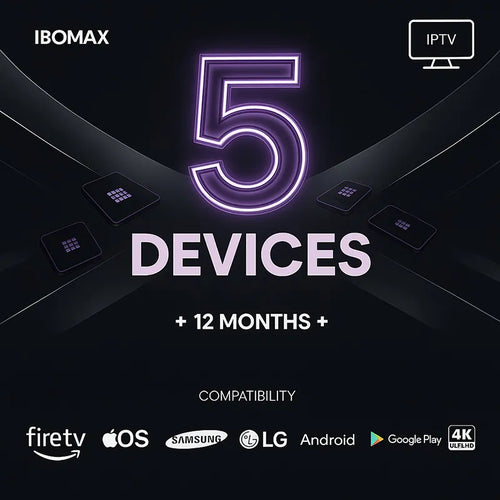
IBOMAX PRO is a premium IPTV subscription that brings live TV channels, movies, series, sports, news, kids' channels, documentaries and international entertainment together in one simple plan. Streams are available in HD, Full HD and 4K depending on your device, internet speed and the channel you choose.
This single IPTV service gives your whole household flexible access to thousands of IPTV channels plus a huge library of on-demand movies and series — with no cable box and no long-term contract. Whether you want IPTV for Smart TV, IPTV for Fire Stick, or IPTV for Android, your login works across every screen you own.
One subscription covers every kind of entertainment your family loves.
Watch live football, basketball, tennis, boxing, MMA and other major sporting events in crisp high definition.
Premium movie channels packed with action, drama, comedy, family and international films.
Stay informed with local and international news channels from regions all over the world.
Family-friendly cartoons, learning channels and children's programs everyone can enjoy safely.
Channels from the USA, UK, Canada, Europe, the Arab world, Latin America, Asia and beyond.
One subscription, every screen in your home.
Set up in minutes on whatever you already own.
Install a compatible IPTV player on your Samsung or LG Smart TV, enter the login we send you, and stream live channels and VOD in minutes.
IBOMAX PRO runs smoothly on Amazon Fire Stick using IPTV Smarters, IBOMAX Player or any compatible app.
Use your subscription on Android TV boxes, Android phones and tablets with your favourite IPTV app.
Stream live TV and movies on iOS devices and Apple TV using supported IPTV players.
Watch directly from your computer using compatible IPTV software or a web-based player.
Up and running in three simple steps.
Download IPTV Smarters or IBOMAX Player on your device — it takes a minute.
Pick your plan and check out. Your login details are sent instantly.
Enter your login and start streaming thousands of channels and movies.
Pick your app and follow the steps — setup takes about 5 minutes on any device.
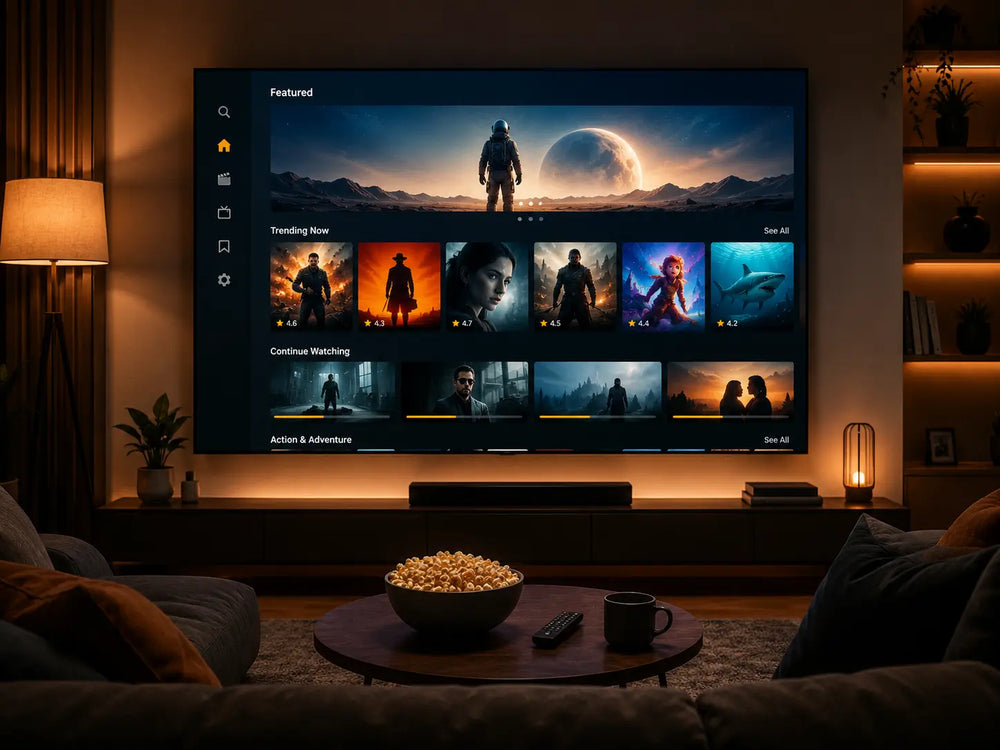
A huge Video-on-Demand library updated regularly, streaming right on your home TV alongside thousands of live channels.
Pick the speed that matches how you like to watch.
Smooth standard high-definition streaming on a single screen.
Crisp 1080p picture with room for multiple devices at home.
The best experience for 4K channels and on-demand titles.
Streaming quality can also depend on your internet provider, device performance, Wi-Fi strength and the channel you select. A wired Ethernet connection gives the most stable picture.
Everything you need for smooth, high-quality streaming on every screen.
Smart TV, Firestick, Android, iOS, MAG, Windows and Mac — one login for every screen.
Crystal-clear 4K, FHD and HD streams that adapt to your connection.
Stable servers with 99.9% uptime keep the picture smooth, even at peak time.
Login details arrive within 60 seconds of checkout — start watching right away.
Why a proper subscription beats free playlists.
| Feature | IBOMAX PRO | Free IPTV |
|---|---|---|
| Channel stability | Stable anti-freeze servers | Often unstable |
| Streaming quality | Up to 4K Ultra HD | Usually low quality |
| Customer support | 24/7 support team | No support |
| Delivery | Instant login details | Manual or unreliable |
| VOD library | 40,000+ titles included | Limited or missing |
| Setup help | Guided, on every device | You're on your own |
IBOMAX PRO is ideal for anyone who wants live sports, international channels, movies, series and news in one simple IPTV subscription. It is a great fit for:
Checkout is secure and SSL-encrypted, and payments are a simple one-time charge — no contract and no auto-renewal. After checkout, your IPTV login details are sent quickly by email or WhatsApp, usually within a minute.
Our support team can help you install the app, activate your subscription and solve basic setup questions on Smart TV, Fire Stick, Android, iPhone, Windows, Mac, MAG and Formuler devices — so you are never stuck.
Try IBOMAX PRO with confidence. If your subscription doesn't work on your device and our support team can't fix the issue, you can request a refund within 24 hours of purchase.
Refunds may not apply once a subscription has been activated successfully and the issue is caused by an unsupported device, a weak internet connection, VPN problems or incorrect app setup.
View PlansEverything you need to know before you subscribe.
Every plan includes 17,000+ live TV channels (sports, movies, news, kids and international), a 40,000+ title movies and series library, up to 4K quality, a full 7-day TV guide (EPG), catch-up TV, and anti-freeze servers with 99.9% uptime. Login details are delivered within 60 seconds of checkout.
Yes — live sport is a core part of the service. You can follow football, basketball, tennis, boxing, MMA and other major events in up to 4K, with no blackout dates.
Yes. IBOMAX PRO runs smoothly on Amazon Fire Stick using IPTV Smarters, IBOMAX Player or any compatible app. Our setup guide walks you through it in about 5 minutes.
Yes. Install a compatible IPTV player such as IBO Player or Smart IPTV on your Samsung or LG Smart TV, enter your login details, and start watching.
Yes — you watch through any Xtream Codes or M3U compatible app. We recommend IPTV Smarters Pro, TiviMate or GSE Smart IPTV depending on your device.
IPTV Smarters Pro works on almost everything, TiviMate is great on Android TV and Fire Stick, and GSE Smart IPTV is ideal for iPhone, iPad and Apple TV.
A standard plan streams on one screen at a time. For simultaneous viewing choose a 12-month multi-device plan (2 to 5 screens), ideal for families.
Yes. Alongside live channels you get a 40,000+ title Video-on-Demand library of movies and series, updated regularly.
Delivery is instant. Your login details are sent by email and WhatsApp within 60 seconds of checkout, so most customers are watching within a few minutes.
About 15 Mbps for HD, 25 Mbps or more for Full HD, and 50 Mbps or more for the best 4K experience. A wired connection gives the most stable picture.
Try switching the app's player between hardware and software decoding, prefer Ethernet over Wi-Fi, and close background apps. Our anti-freeze servers keep issues rare, and support can help if buffering continues.
The streams adapt to your connection, so lower-speed connections can still watch in HD or SD. For 4K you'll want a faster connection.
Yes. When your plan is ending we send a reminder, and you can renew any time — nothing renews automatically, so you're always in control.
There's no free trial, but the 1-month plan is a low-risk way to try the service, and every plan is backed by a 24-hour money-back guarantee.
Checkout is secure and SSL-encrypted. Payments are one-time — no contract and no auto-renewal.
Responsible IPTV Use. IBOMAX PRO is designed to be used with compatible IPTV applications and supported devices. The availability of channels, movies, series and live events may vary by region, device, subscription type and content rights. Customers are responsible for using the service in accordance with the laws and regulations that apply in their location.
Get instant access to premium IPTV with 24/7 support and a 24-hour money-back guarantee.