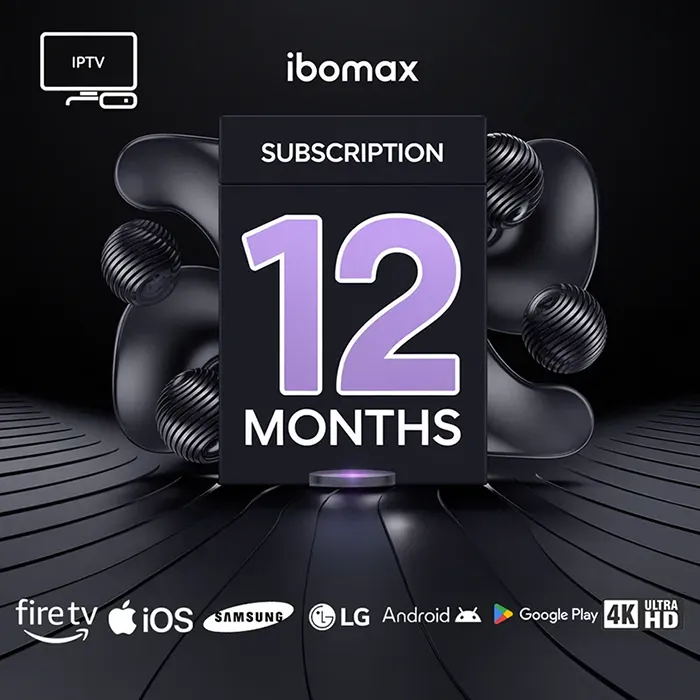
Unlock 12 Months of Endless Entertainment on 2 Devices
The IBOMAX 2 Devices 12 Months Subscription is your all-access pass to live TV, sports, movies, and series. Premium stability, crystal-clear quality, and ultimate convenience.
Why Choose Your IBOMAX 2-Device Plan?
This isn’t just another IPTV subscription. This is a 12-month commitment to flawless entertainment for you and your family. Watch on two screens simultaneously—living room TV and bedroom, or share with a loved one. No more fighting over the remote!
🎯 Rock-Solid Stability
Our proprietary Anti-Freeze Technology and 99.9% Uptime Guarantee mean you watch the big game or season finale without frustrating buffering or dropouts.
🌍 Content For Everyone
Over 20,000 live channels, 90,000+ VOD titles. Live sports (PPV, NFL, NBA, Premier League), latest movies, TV series, kids’ cartoons, and international channels from the UK, US, Canada, and more.
⚡ Instant Activation & Support
Get your credentials emailed to you instantly after payment. Stuck? Our 24/7 customer support via WhatsApp and email will guide you through setup in minutes.
Your Technical & Setup Details
We’ve designed the IBOMAX 2 Devices 12 Months Subscription to work seamlessly with the hardware and apps you already own. Here’s everything you need to know to get started.
Main Features of the IPTV Service
- Multi-Device Freedom: Use your subscription on two devices at once. Perfect for family sharing.
- Premium Quality Streams: Enjoy channels and VOD in 4K, UHD, FHD, and HD with HEVC/H.265 support for efficient bandwidth use.
- Massive On-Demand Library: Full seasons of popular series, blockbuster movies, and documentaries added regularly.
- Electronic Program Guide (EPG): Beautiful, accurate TV guides for easy browsing and scheduling.
- Catch-Up & TV Archive: Missed your show? Watch it up to 7 days later with our Catch-Up feature.
- VPN Friendly: Works perfectly with your preferred VPN for added privacy and access.
Supported Streaming Formats (M3U, Xtream, Portal)
We provide multiple connection methods for maximum compatibility with any IPTV app:
- M3U URL: The universal playlist format. Paste it into virtually any IPTV player.
- Xtream Codes API: (Username, Password, Server URL). The preferred method for apps like Smarters Pro and TiviMate for a richer, stable experience.
- Portal Login (MAC/Stalker): For specific set-top boxes that require MAC address registration.
You will receive all necessary credentials (M3U link, Xtream Codes, and portal URL) instantly upon purchase.
Compatible IPTV Apps (Smarters, TiviMate, IBO Player, etc.)
Your subscription works brilliantly with these top-rated apps. Choose your favorite:
IPTV Smarters Pro
User-friendly, great for beginners. Available on Android, iOS, Firestick, and Smart TVs.
TiviMate
The premium choice for Android/Firestick. Customizable, slick interface, and recording capabilities.
IBO Player
Our optimized in-house player for the smoothest possible IBOMAX experience.
Others
Perfect Player, OTT Navigator, Kodi, VLC, and more. Use your M3U link.
Internet Speed Requirements
For a buffer-free experience, ensure your network meets these minimums:
- SD Quality: Minimum 10 Mbps.
- HD Quality (1080p): Minimum 20 Mbps.
- UHD/4K Quality: Minimum 30 Mbps (stable connection recommended).
Pro Tip: Since your plan supports 2 simultaneous streams, multiply the above by 2. A 40+ Mbps connection is ideal for two HD streams.
Recommended Network Setup
Optimize your setup to eliminate buffering:
- Wired Connection (Ethernet): For your primary device (like a TV box), use an Ethernet cable. It’s always more stable than Wi-Fi.
- 5GHz Wi-Fi: If using Wi-Fi, connect to the 5GHz band for less interference and higher speed (if your device supports it).
- Router Placement: Keep your router central and elevated, away from walls and other electronics.
- Reboot Regularly: Restart your router and streaming device once a week to clear cache and improve performance.
Setup Guide for TiviMate / IBO Player / Others
Getting started is easy. Follow these general steps:
Using Xtream Codes (Recommended for TiviMate/Smarters):
- Install your chosen app (e.g., TiviMate) from the official store.
- Open the app and select “Add Playlist” or “Add User”.
- Choose “Xtream Codes API” as the connection type.
- Enter the Username, Password, and Server URL from your welcome email.
- Save. Your playlist and EPG will load automatically. Enjoy!
Using M3U URL (Universal Method):
- Install your IPTV player (e.g., VLC, Perfect Player).
- Find the “Add URL” or “Open Network Stream” option.
- Paste the full M3U URL from your welcome email.
- Save. The channel list will populate.
Detailed, app-specific guides with screenshots are sent with your credentials.
Troubleshooting – Common Issues
- “No Channels Loaded”: Double-check your credentials. Ensure you’re using the correct Xtream Codes API details or M3U URL.
- “Playlist Error”: Your subscription may have expired (unlikely with a fresh 12-month plan) or there’s a temporary server update. Contact support.
- “EPG Not Showing”: The EPG loads separately. In your app settings, ensure the EPG source URL is correctly entered (provided in your email).
How to Fix Freezing or Buffering
If you experience buffering, 99% of the time it’s a local network issue. Follow this checklist:
- Run a Speed Test: Use speedtest.net on your streaming device. Ensure it meets the requirements above.
- Change Streaming Server: In your app settings, you can often select a different server location (closer to you) from the list provided.
- Adjust Buffer Size: In apps like TiviMate, increase the buffer size in settings for a more stable stream.
- Check Device Performance: Clear the cache of your IPTV app or restart your device (Firestick, Android Box, etc.).
- Use a VPN: Sometimes, ISP throttling can cause buffering. Connecting to a quality VPN often resolves this immediately.
If problems persist, our 24/7 support team is ready to diagnose and help.
Video Tutorial Installation
We believe in visual learning. Scan the QR code below or visit our website to access our full library of step-by-step video tutorials for every device and app.
📺 Watch Easy Setup Videos
Go to https://ibomaxpro.com/tutorials for visual guides on installing on Firestick, Android TV, Smart TVs, and more.